Event Tour
Speakers
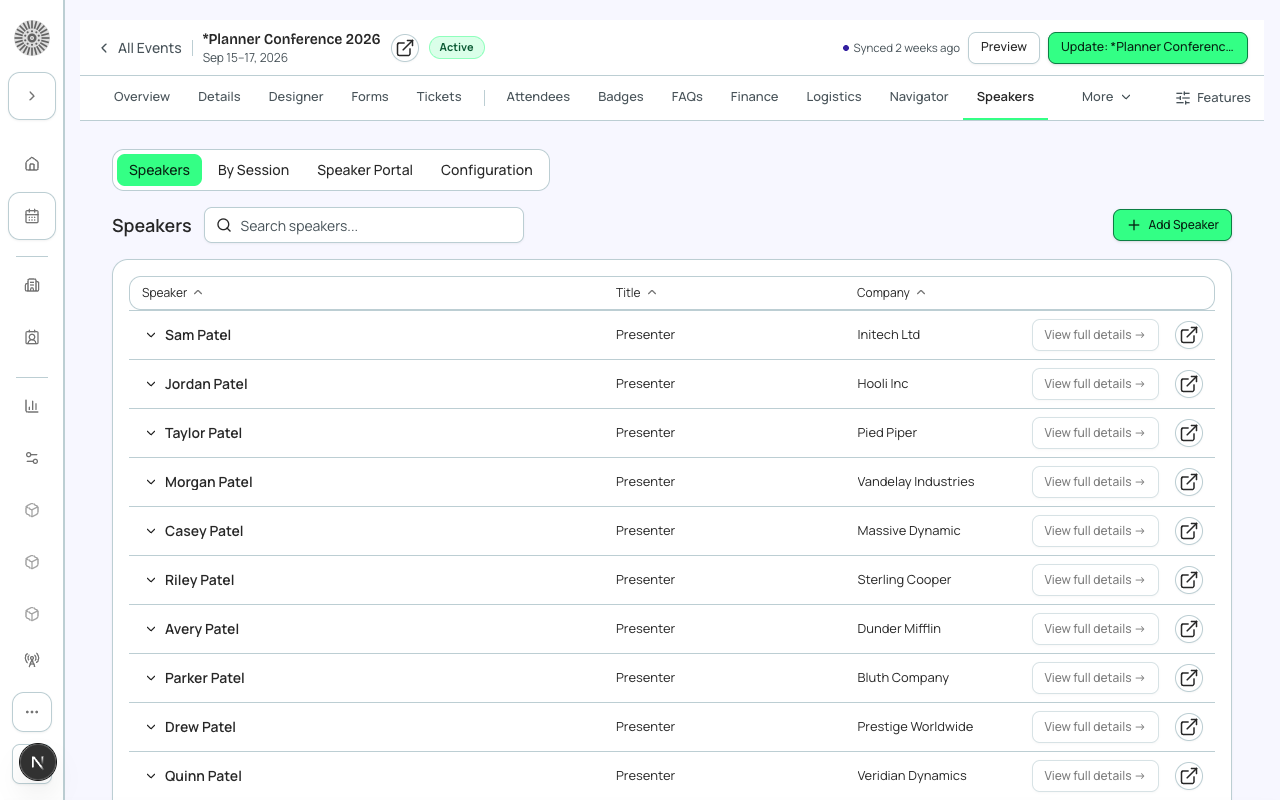
The Speakers tab manages everyone presenting at or contributing to your event — keynote speakers, panelists, workshop facilitators, and emcees. Forge maintains a global speaker roster shared across all your events, so a returning speaker's bio and headshot are always available without re-entry.
Speaker Statuses
| Status | Meaning |
|---|---|
| Planned | Speaker is being considered but has not yet been invited. |
| Invited | Speaker has been invited but has not yet confirmed. |
| Confirmed | Speaker has accepted and will appear at the event. |
| Attended | Speaker was checked in / appeared at the event. |
| Declined | Speaker was invited but declined. |
| Canceled | Previously confirmed speaker is no longer participating. |
| No Show | Speaker was confirmed but did not attend. |
Adding a Speaker to an Event
- Go to the Speakers tab and click 'Add Speaker'.
- Search the global speaker roster by name. If the speaker already exists (from a prior event), select them — their bio and headshot carry over.
- If they are new, click 'Create New Speaker' and fill in name, title, company, bio, and headshot.
- Set the speaker's status (Planned, Invited, or Confirmed).
- Optionally assign them to one or more sessions.
- Save.
Speaker Profile Fields
- Name — displayed on the registration page and event agenda.
- Title — job title, displayed alongside the name.
- Company — employer or affiliation.
- Bio — rich text. Displayed on the public registration page and in the Speaker Portal.
- Headshot — square image. Displayed on cards and in the Speaker Portal.
- Social links — LinkedIn, Twitter/X, website.
- Private notes — internal notes visible only to organizers, not to the speaker or the public.
Speaker Portal (in development)
Once the Unified Portal feature is available for your workspace, each confirmed speaker will get a personalized portal link. From the portal they can update their own bio and headshot, view their session schedule, and upload presentation materials. The portal runs on Forge's subdomain routing.
In Development
The Speaker Portal is part of the Unified Portal feature, currently In Development (not yet self-serve toggleable from the /beta page). Once available, each speaker receives a signed magic-link invitation email.
Displaying Speakers Publicly
Confirmed speakers whose 'Show on Public Page' flag is enabled appear in the Speakers section of the event registration page. The registration page displays their headshot, name, title, company, and bio. The order follows the sequence in the Speakers tab (drag to reorder).
| Forge | SF Object | SF Field |
|---|---|---|
| Speaker name | conference360__Speaker__c | Name |
| Bio | conference360__Speaker__c | conference360__Bio_Rich__c |
| Title | conference360__Speaker__c | conference360__Title__c |
| Company | conference360__Speaker__c | conference360__Company__c |