Event Tour
Finance
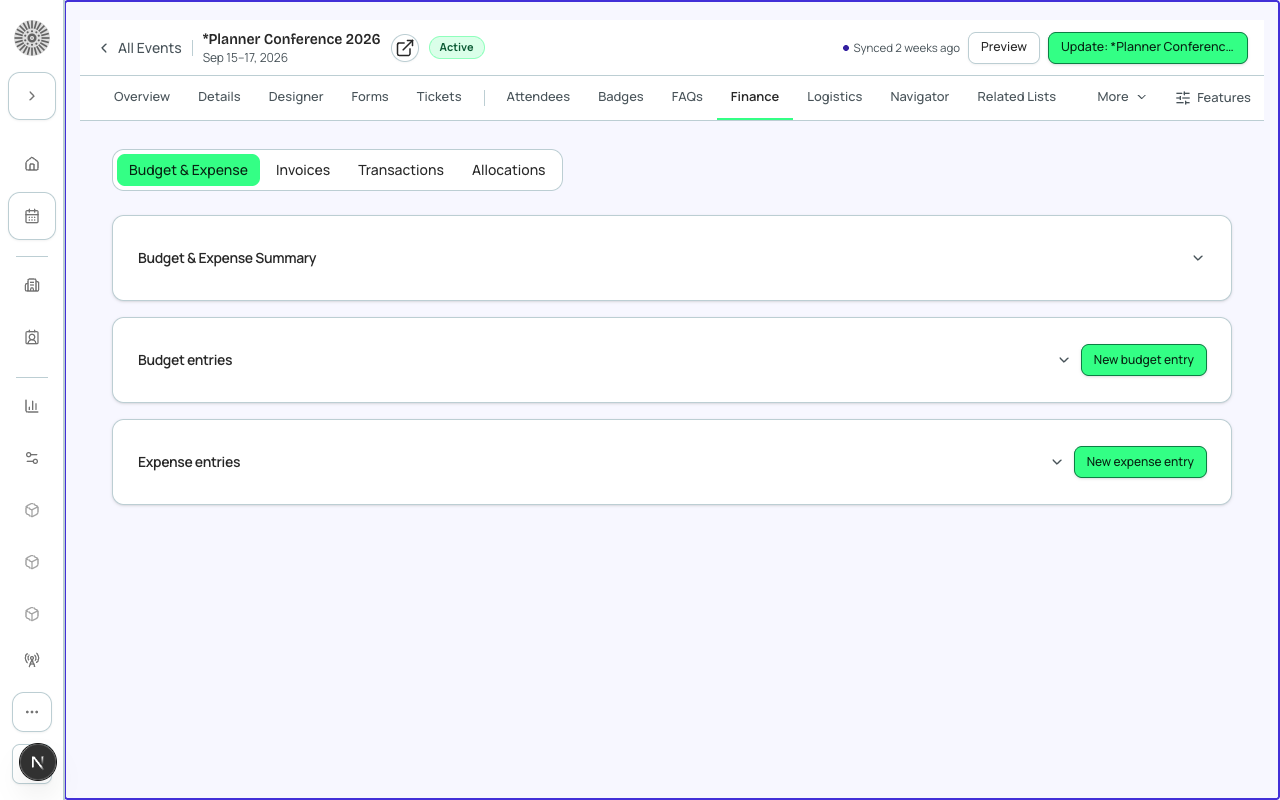
The Finance tab is the event's financial control center. It shows all payment activity — orders, transactions, refunds, and discount codes — and gives you tools to issue refunds, apply credits, and manage event-level pricing settings.
Orders and Transactions
Each registration that includes a paid item generates an Order (bt_stripe__Sales_Document__c) and one or more Transactions (bt_stripe__Transaction__c). An order can contain multiple line items if a registrant purchased a ticket plus add-ons.
A transaction's processing state and its payment state are tracked as two separate fields in Salesforce.
| Transaction Status | Meaning |
|---|---|
| Completed | The transaction finished processing successfully. |
| Pending | The transaction is being processed (e.g., ACH/bank transfer in progress). |
| On Hold | The transaction is held, pending manual review or action. |
| Needs Review | The transaction requires manual review before it can proceed. |
| Failed | The transaction attempt was rejected by the gateway. |
| Canceled | The transaction was canceled before completion. |
| Payment Status | Meaning |
|---|---|
| Captured | Funds were successfully captured from the payment method. |
| Refunded | Full refund was issued. |
| Partially Refunded | Partial refund was issued. |
| Disputed | The cardholder has disputed the charge. |
Issuing a Refund
- Find the order in the Finance tab — search by attendee name, email, or order number.
- Click the order to open the detail view.
- Click 'Refund' and select Full Refund or enter a partial amount.
- Add an internal reason note (for the audit trail).
- Confirm. Forge sends the refund to the payment gateway. The Transaction record is updated to 'Refunded' in Salesforce.
- The attendee receives a refund confirmation email automatically.
Refund processing time
Refunds are submitted to the payment gateway immediately, but the return of funds to the cardholder's account depends on the bank — typically 5–10 business days for card refunds. ACH refunds may take longer.
Discount Codes
Discount codes let you offer reduced pricing to specific attendees. Create event-specific codes in the Finance tab, or apply global codes (created in Global Options).
- Code name — the string registrants enter at checkout (e.g., EARLYBIRD25).
- Discount amount — a fixed amount off (e.g., $25 off) or a percentage off (e.g., 20% off).
- Quantity available — leave blank for unlimited uses.
- Eligible tickets — restrict the code to specific ticket types.
- Valid from / through — the date window during which the code works.
| Forge | SF Object | SF Field |
|---|---|---|
| Discount code | bt_stripe__Code__c | Name |
| Discount amount (flat) | bt_stripe__Code__c | bt_stripe__Discount_Amount__c |
| Discount amount (percentage) | bt_stripe__Code__c | bt_stripe__Discount_Percentage__c |
| Quantity available | bt_stripe__Code__c | bt_stripe__Quantity_Available__c |
Fees
The Finance tab shows the fees applied to each transaction — processing fees configured in Global Options, or event-specific fee overrides. You can view whether fees were absorbed by the organizer or passed to the registrant.
Revenue Summary
At the top of the Finance tab, a summary card shows: total gross revenue, total refunds, net revenue, and number of transactions. This is a live view — it updates as payments and refunds are processed.
Salesforce mapping
Every order is a bt_stripe__Sales_Document__c record in Salesforce. Every payment or refund is a bt_stripe__Transaction__c. Gateway credentials are stored in bt_stripe__Payment_Gateway__c. Card data is never stored — Forge and Salesforce store only tokenized references.