Reporting and Finance
Invoices and Fees
Invoices allow you to collect payment from registrants or organizations outside of the real-time checkout flow — useful for corporate group bookings, purchase-order-based billing, or post-event reconciliation. Fees are line items added to tickets or invoices to cover processing costs, service charges, or taxes.
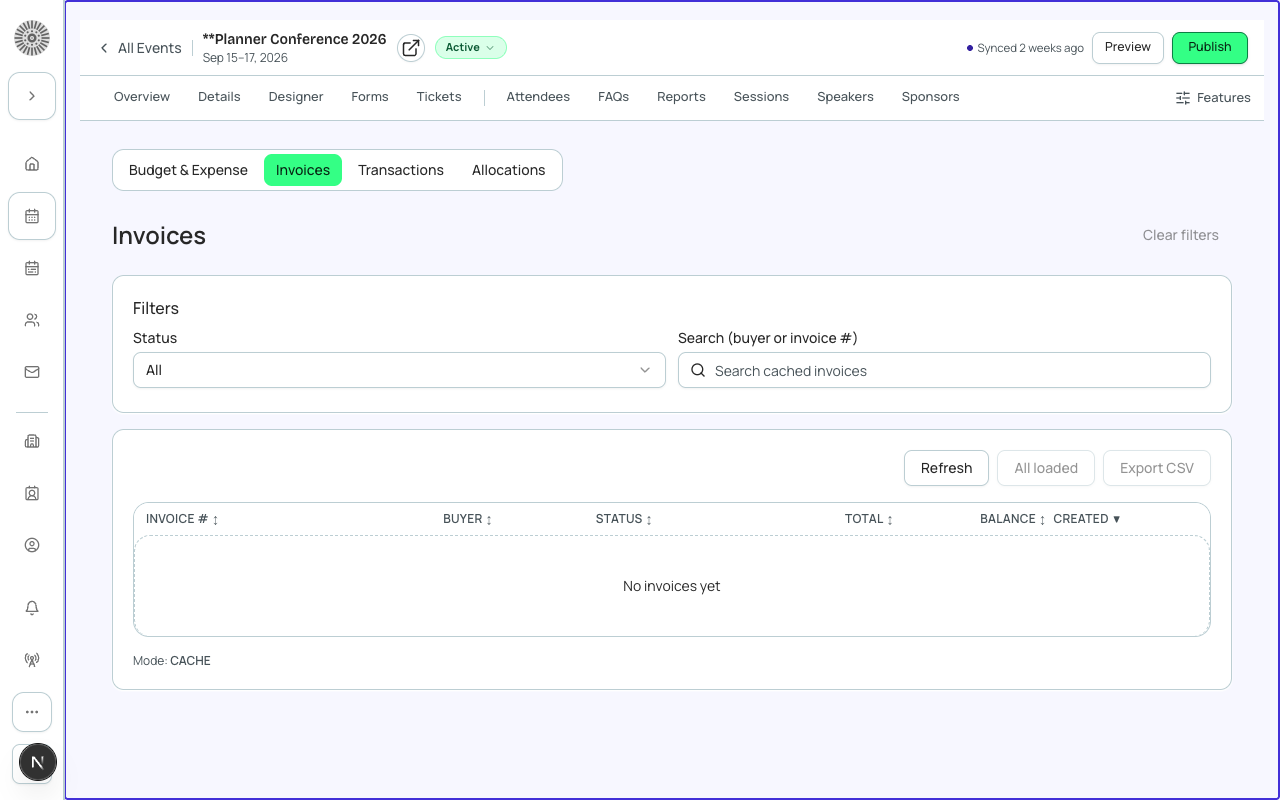
What is an Invoice?
An invoice in Forge is a bt_stripe__Sales_Document__c record in Salesforce with a payment method of Invoice rather than Card. The registrant or their organization receives an invoice document by email and pays via bank transfer, check, or a payment link — at a later date rather than at checkout.
Creating an Invoice
- Navigate to the event Finance tab and click Invoices.
- Click New Invoice.
- Select the attendee or organization to invoice. For group invoicing, select multiple attendees (e.g. all attendees from the same account/company).
- Verify the line items — tickets and products from those attendees' registrations are auto-populated.
- Add any manual line items if needed (e.g. a custom fee or a miscellaneous charge).
- Set the invoice due date.
- Click Send Invoice — this creates the Sales Document in Salesforce and emails the invoice PDF to the billing contact.
Invoice Statuses
| Status | Meaning | SF field value |
|---|---|---|
| Draft | Invoice created but not yet sent to the recipient | Draft |
| Sent | Invoice has been emailed to the recipient; payment is pending | Sent |
| Completed | Invoice has been paid in full — either via the payment link or a manually recorded payment | Completed |
| Overdue | Invoice due date has passed without payment | Still Sent — Forge calculates "overdue" by comparing the due date to today; there is no distinct Overdue status value |
| Voided | Invoice has been cancelled; no payment will be collected | Voided |
| Rejected | The billing contact declined the invoice | Rejected |
Recording a Manual Payment
When payment arrives outside of Forge (e.g. bank wire, check), mark the invoice as paid manually:
- Open the invoice from the Finance > Invoices list.
- Click Record Payment.
- Enter the amount received, payment date, and payment reference (e.g. check number or wire reference).
- Click Save — the invoice status updates to Completed and a corresponding Transaction record is created in Salesforce.
Fees Reference
Fees are additional charges applied at checkout or on invoices. They are configured in Global Options > Fees and can be applied at the account level (all events), event level, or per ticket type.
Fee__c has exactly two types — there is no separate fixed-dollar-amount or "absorbed" fee type. Every fee is expressed as a percentage.
| Fee type | How it is calculated | Example | SF field |
|---|---|---|---|
| Payment Processing | A percentage of the ticket price or order total, applied after tax | 3% credit card surcharge | bt_stripe__Fee__c.bt_stripe__Fee_Percentage__c (Type__c = Payment Processing) |
| Tax | A percentage-based tax line item (e.g. GST, VAT), applied after discounts | 10% GST on all items | bt_stripe__Fee__c.bt_stripe__Fee_Percentage__c (Type__c = Tax) |
For Tax-type fees, the Tax Display Setting controls whether the advertised price already includes tax (Tax-Inclusive Pricing) or tax is calculated and shown separately at checkout (Calculated at Checkout) — tax is always broken out as its own line on the final payment screen either way.
Fee Assignment
| Level | Scope |
|---|---|
| Account level | Applies to all events and all tickets unless overridden |
| Event level | Overrides the account-level fee for a specific event |
| Ticket level | Applies only to a specific ticket type — useful for differential processing fees on donation vs admission tickets |
Fee display at checkout
By default, fees are shown as separate line items at checkout so registrants see what they are paying for. You can configure fees to be rolled into the ticket price (absorbed) if you prefer not to itemize them. Check with your accountant regarding local regulations on fee disclosure.
| Forge | SF Object | SF Field |
|---|---|---|
| Invoice / Order | bt_stripe__Sales_Document__c | Status, Total, Due Date, Gateway |
| Fee | bt_stripe__Fee__c | Type__c (Payment Processing / Tax), Fee_Percentage__c, Default_Fee__c |
| Payment transaction | bt_stripe__Transaction__c | Amount, Status, linked to Sales_Document__c |